Forms
Fillable PDFs: text inputs, check boxes, radio groups, select boxes and signature fields that lay out like any other element.
Overview#
An AcroForm, built with the element DSL.
Form fields are interactive widgets: the reader types into them, ticks them and saves or prints the result in any PDF viewer. Together they are the document's AcroForm. In stationery a field is an element like text or box: it takes its place in the flow, fills the width it is given and moves to the next page when it does not fit.
class ApplicationPdf < Stationery::Document
  def initialize(applicant)
    super()
    @applicant = applicant
  end

  def view_template
    text "Name"
    text_field "applicant.name", value: @applicant.name, required: true
    text_field "applicant.notes", multiline: true, height: 60
    text_field "applicant.pin", comb: 6                      # six cells; sets max_length
    select "applicant.country", options: %w[Sweden Norway Denmark], value: "Sweden"
    radio "plan", "basic", label: "Basic"                    # radios sharing a name form one group
    radio "plan", "pro", checked: true, label: "Pro"
    checkbox "terms", label: "I accept the terms"
    signature_field "signature", label: "Signature of the applicant"
  end
end
Fields work wherever elements do: inside box, row and column, and inside a table cell given as a proc.
row(gap: 12) do
  column { text_field "applicant.name" }
  column(width: 90) { text_field "applicant.postcode", comb: 5 }
end

table([["Name", -> { text_field "name", value: "Ada" }]], width: :full, widths: [100, nil])
at: [x, y] places a field at a page position instead, outside the flow, measured from the top left corner of the page like every other at:.
text_field "reference", at: [400, 60], width: 140Options every field takes#
Beside its own, listed per field below.
| Option | Type | Default | Description |
|---|---|---|---|
name | String | required | The first argument. Dot-separated segments group fields ("applicant.name"); see Names and grouping. |
at | [x, y] | nil | A page position in points from the top left corner, outside the flow. |
read_only | Boolean | false | The reader cannot change the value. A read-only field also keeps only its value's glyphs in the font; see Appearance and fonts. |
required | Boolean | false | Sets the field's Required flag, which viewers use to highlight it and to check it when the form is submitted. |
font_size | Numeric, :auto or :fit | 10 | The size of the value a text field or select box shows, in points; :auto for the largest that fits, chosen again by a viewer when it redraws; :fit for that size written as a number. See Alignment, colour and auto-size. |
border | Color | "#9CA3AF" | The frame's stroke; nil for none. A signature field draws its rule in it. |
background | Color | "#FFFFFF" | The frame's fill; nil for none. |
radius | Numeric | 2 | The frame's corner radius. A radio button is always a circle. |
tooltip | String | label or name | The field's accessible name (/TU), which viewers show on hover and screen readers announce. |
An option a field does not know raises ArgumentError (unknown text field option: …), so a misspelt name never goes unnoticed.
text_field#
A single line, several lines or a row of cells.
text_field(name, value: "", width: :full, height: 22, at: nil, **options)
text_field "applicant.name", value: @applicant.name, required: true
text_field "applicant.notes", multiline: true, height: 60
text_field "applicant.postcode", comb: 5, width: 90
text_field "applicant.iban", max_length: 34, font_size: 9| Option | Type | Default | Description |
|---|---|---|---|
value | String | "" | The text the field starts with, in any script the document's fonts cover. |
width | :full or points | :full | Fills the width it is given, or takes a fixed width. |
height | Numeric | 22 | The widget's height in points. |
multiline | Boolean | false | Several lines: the value wraps to the field's width and keeps its own line breaks. Give it a height: that fits them. |
max_length | Integer | nil | The most characters the reader may type. |
comb | Integer or true | nil | Splits the field into equal cells, one character each. A number is the cell count and sets max_length; true takes the count from max_length:. Without either it raises ArgumentError. |
checkbox#
A box to tick, with an optional label.
checkbox(name, checked: false, size: 12, label: nil, at: nil, **options)
checkbox "terms", label: "I accept the terms of membership."
checkbox "newsletter", checked: true, label: "Send me the monthly newsletter."| Option | Type | Default | Description |
|---|---|---|---|
checked | Boolean | false | Whether the box starts ticked. |
size | Numeric | 12 | The side of the box in points. |
label | String | nil | Text drawn to the right of the box in the text style around it, centred on the box. It is also the field's tooltip: unless one is given. |
The label is ordinary page text, not part of the field, so it wraps, takes the surrounding text_style and is tagged as a paragraph.
radio#
One choice of a group.
radio(name, value, checked: false, size: 12, label: nil, at: nil, **options)
radio "plan", "basic", label: "Basic · SEK 290 / year"
radio "plan", "pro", checked: true, label: "Pro · SEK 590 / year"
radio "plan", "team", label: "Team · SEK 1,490 / year"
Radios sharing a name are one field, of which the reader picks one choice. The group's value is the value of the checked choice, and Off in the file when none is checked.
| Option | Type | Default | Description |
|---|---|---|---|
value | String | required | The second argument: what the group's value becomes when this choice is picked. |
checked | Boolean | false | Whether this choice starts selected. |
size | Numeric | 12 | The diameter of the button in points. |
label | String | nil | Text drawn to the right of the button in the text style around it. |
A group is named after its field name; give the first choice a tooltip: to name it otherwise.
select#
A drop-down of options (a combo box).
select(name, options:, value: nil, width: :full, height: 22, at: nil, **options)
select "applicant.country", options: %w[Sweden Norway Denmark Finland Iceland], value: "Sweden"
select "applicant.city", options: %w[Lund Malmö], editable: true| Option | Type | Default | Description |
|---|---|---|---|
options | Array | required | The choices, in the order the viewer lists them. |
value | String | nil | The chosen option, drawn in the field. Without one the field starts empty. |
width | :full or points | :full | Fills the width it is given, or takes a fixed width. |
height | Numeric | 22 | The widget's height in points. |
editable | Boolean | false | Lets the reader type a value that is not in the list. |
signature_field#
An empty field for the signer.
signature_field(name, width: :full, height: 40, label: "Signature", at: nil, **options)
row(gap: 24, align: :bottom) do
  column { signature_field "signature", label: "Signature of the applicant" }
  column(width: 150) { text_field "signed_on" }
end| Option | Type | Default | Description |
|---|---|---|---|
width | :full or points | :full | Fills the width it is given, or takes a fixed width. |
height | Numeric | 40 | The widget's height in points. |
label | String | "Signature" | Set in small grey text under the rule, and the field's tooltip: unless one is given. "" draws the rule alone. |
A signature field has no frame: it draws a rule in the border: colour over its label and is written without a value, for the signer to fill. See Signing.
Alignment, colour and auto-size#
How a text field's or select's value is set, in the file and in its appearance.
text_style(weight: :bold) do
  text_field "price", value: "4 990 kr", align: :center, color: "#DC2626", font_size: :fit,
                      max_font_size: 120, height: 150, border: nil, background: nil
end
select "unit", options: ["per piece", "per kg"], value: "per piece", align: :center
Each option is written to the field, where a viewer reads it when it redraws the value, and drawn the same way in the appearance stationery writes, so the field looks the same before and after an edit. A field that uses none of them is written as it was. Bold and italic come from the text style around the field, as its font does.
| Option | Type | Default | Description |
|---|---|---|---|
align | :left, :center, :right | :left | Written as /Q (1 or 2; nothing for :left). The value is placed within the field's box less its padding, each line of a multiline: value by its own width. A comb: field ignores it: its cells place each character. |
color | Color | "#000000" | Any colour the gem takes. The colour operator of /DA (0 g for black, rg for RGB, k for CMYK) and the colour the value is painted in. Under monochrome it is checked like any other colour; under PDF/A a CMYK one is reported. |
font_size: :auto | Writes 0 Tf in /DA. The appearance draws the largest size, in tenths of a point, at which one line fits the field's height and width; a comb: field's widest character fits its cell; a multiline: value, wrapped to the width, fits the height. | ||
font_size: :fit | The size :auto draws, written in /DA as a number (/F1 96 Tf), so a viewer that redraws the field keeps it. A longer value typed into the field afterwards is clipped or scrolls, as in any fixed-size field, and an empty field is sized to its bound: a field left empty to be filled in wants :auto. Inspector#layout reports the number. A field placed in several places writes the first's size; each place draws its own. | ||
min_font_size | Numeric | 4 | With font_size: :auto or :fit: the smallest size drawn. A value that does not fit at it is clipped. |
max_font_size | Numeric | the height | With font_size: :auto or :fit: the largest size drawn. |
min_font_size: and max_font_size: are not in the file: a viewer that redraws the field sizes it by its own rule, and may draw a short value larger than the cap. With :fit the chosen size is in the file, so a viewer draws the value no larger than the cap.
What viewers do when they redraw
Every viewer shows the appearance as stationery drew it. A viewer redraws a field from /DA and /Q when it opens a form with NeedAppearances (every render without a conformance level or a signature) and after an edit. Firefox draws two things: the appearance pdf.js generates from /DA (src/core/annotation.js), which is what it prints, and an HTML input it shows while the field is edited (src/display/annotation_layer.js, _setTextStyle). That input is set in the browser's own face, never the PDF's, so a bold field shows regular text while it is edited; no file can change that. Read from each engine's source on 2026-10-01:
| Viewer | align: (/Q) | color: | font_size: :auto, one line | font_size: :auto, multiline: | font_size: :fit or a number |
|---|---|---|---|---|---|
| Firefox (pdf.js), appearance | Yes | Yes | Fits the height and the width, no floor or cap | Shrinks until the lines fit, no cap | The number |
| Firefox (pdf.js), input while editing | Not checked | Not checked | 9 px (DEFAULT_FONT_SIZE), capped as a number is | 9 px, capped as a number is | The number, capped at (height − 2) ÷ 1.35, in the browser's face; multiline: caps each line's share of the height the same way |
| Chrome, Edge (PDFium) | Yes; not a select's (GenerateComboBoxAP sets no alignment) | Yes | The largest of 4, 6, 8, 9, 10, 12, 14 … 144 pt that fits | 4 to 12 pt | The number |
| Evince, Okular (poppler) | Yes | Yes | Fits the height and the width, whole points | The largest of 20 down to 1 pt that fits | The number, not shrunk |
| MuPDF | Yes | Yes | Fits the width, capped at the height | 12 pt, not shrunk | The number |
| Acrobat, Acrobat Reader | Not tested | Not tested | Reported: the size that fills the height, shrinking as the text grows | Not tested | Not tested |
| Preview (macOS) | Not tested | Not tested | Not tested | Not tested | Not tested |
Sources: pdf.js src/core/annotation.js (_getAppearance, _computeFontSize), src/core/default_appearance.js, src/display/annotation_layer.js (_setTextStyle) and src/shared/util.js (LINE_FACTOR); PDFium core/fpdfdoc/cpdf_generateap.cpp and cpvt_variabletext.cpp (GetAutoFontSize); poppler poppler/Annot.cc (drawText, calculateFontSize); MuPDF source/pdf/pdf-appearance.c (write_variable_text). Acrobat's is what its users report; Adobe documents no rule.
stationery inspect and Inspector#layout report each field's align:, font_size: (:auto for 0 Tf, the number for :fit) and color: (see Testing).
Names and grouping#
One field per name; dots build the hierarchy.
A name is one or more segments separated by dots. Each segment but the last is a group, which viewers and form-data exports show as a hierarchy:
text_field "applicant.name"
text_field "applicant.address.street"
text_field "applicant.address.postcode", comb: 5
That is three fields under the group applicant, two of them under applicant.address.
| Situation | Result |
|---|---|
| Several widgets share a name | One field with several widgets: fill one and the others follow. They must be the same kind. |
| Radios share a name | One radio group, a choice per widget. |
A name is both a field and a group ("a" and "a.b") | ArgumentError |
| A name is shared by fields of different kinds | ArgumentError |
An empty name or segment ("", "a..b") | ArgumentError |
Values#
What a render reports, and what the file holds.
document.fields returns { name => value } for the last render; it is nil before the first.
document = ApplicationPdf.new(applicant)
document.to_pdf
document.fields
# => { "applicant.name" => "Astrid Lindqvist", "applicant.country" => "Sweden",
# "plan" => "pro", "terms" => false, "signature" => nil }| Field | Value |
|---|---|
text_field | The String it shows |
checkbox | true or false |
radio group | The checked choice's value, nil when none is checked |
select | The chosen option, nil when none is |
signature_field | nil |
Values are written as Unicode text strings, so "Βασιλείου" or "Müller" is stored as typed, whatever the font. In an encrypted document (to_pdf(encrypt: …)) the values are encrypted with everything else, and the fields stay fillable for whoever opens it with the password.
Appearance and fonts#
Drawn by stationery, in the document's own fonts.
Every widget carries its own appearance, so a form looks the same in every viewer and in print, whether or not the viewer can draw fields itself.
- Text (a text field's or select box's value, a signature field's label) is set in the text style around the field, in the document's own fonts: embedded, with the fallbacks applied per character. A value in any script the fonts cover is drawn; a character no font has is reported as a
MissingGlyphwarning, as in any other text, and drawn as.notdefinside aSpanwhoseActualTextis the character, so the appearance still extracts and copies as written. That holds for every line of amultiline:field and everycomb:cell. Under a conformance level it raises instead, unless the level is declared withmissing_glyphs: :replace: then the character is drawn as the font's stand-in (U+FFFD, else U+25A1, else?) in the sameSpan. - Check marks and radio dots are vector paths. No appearance uses a symbol font.
text_style(font: "Noto Sans", weight: :bold) do
  text_field "name", value: "Βασιλείου", tooltip: "Family name"
end
What an editable field keeps in its font
Fonts are embedded as subsets. A field the reader can edit must be able to show more than the value it starts with, so its font keeps printable ASCII and Latin-1 beyond that value, and a select box the glyphs of every option.
| Field | Glyphs kept in the font |
|---|---|
Editable text_field or select | The value, every option of a select, printable ASCII and Latin-1 |
read_only: true | The value only |
checkbox, radio | None: the marks are paths |
The repertoire costs 10 to 20 KB per font (16 KB for the bundled Inter). Mark fields the reader should not change read_only: and they cost what ordinary text does.
When the reader types a character outside what the font kept, the viewer draws it in a font of its own. The value is stored correctly either way; only the look of that character differs until the document is rendered again with the new value.
What viewers are asked to do
NeedAppearances is set, so a viewer redraws a field after an edit, using the font and size the field names (/DA, for example /F1 10 Tf 0 g). A form with check boxes or radio buttons also lists ZapfDingbats in its resources, for viewers that redraw a button's mark with it; it is never embedded and never used by the appearances stationery writes. Under a conformance level, and in a signed document, both are left out.
Fields made without a font book
Stationery::Forms::Field.new placed with canvas.widget on a bare canvas has no document fonts to draw with. It falls back to the standard Helvetica in Windows-1252, where a character outside that encoding shows as ?: a real glyph, written without ActualText, while the field's /V keeps the value. The five elements on this page never take that path.
Accessibility and conformance#
Tagged forms, PDF/UA-1 and PDF/A.
In a tagged PDF every field is a Form structure element that owns its widget, in reading order with the text around it, and a check box's or radio button's label is a paragraph next to it. Every field has an accessible name (/TU):
| Field | Accessible name |
|---|---|
Any field with tooltip: | The tooltip |
checkbox, signature_field | Its label:, else its name |
radio group | The tooltip: of its first choice, else its name |
text_field, select | Its name |
A name such as applicant.address.postcode is a poor thing to hear read out. Give text fields and select boxes a tooltip: that says what to enter:
text "Postcode", size: 8
text_field "applicant.address.postcode", comb: 5, tooltip: "Postcode, five digits"
Forms are allowed under every conformance level. The appearances draw with embedded fonts and paths, which is what PDF/A-3b and PDF/UA-1 require, and under a level the form leaves out NeedAppearances and the ZapfDingbats entry. examples/form.rb is validated as both with veraPDF in CI.
class ApplicationPdf < Stationery::Document
  conformance :pdf_a3b, :pdf_ua1
  metadata title: "Membership application", lang: "en"
endDebugging#
See where the widgets are.
to_pdf(debug: [:field]) outlines every field's widget in violet, without the outlines of the other layout kinds; debug: true draws them all.
ApplicationPdf.new(applicant).to_pdf("form-debug.pdf", debug: [:field])Testing#
Assert the values and the structure.
document.fields is the quickest assertion: it is what the form was filled with. The matchers cover the rest.
RSpec.describe ApplicationPdf do
  subject(:document) { described_class.new(applicant) }

  it "prefills the applicant and leaves the signature to the signer" do
    document.to_pdf

    expect(document.fields).to include("applicant.name" => "Astrid Lindqvist", "plan" => "pro",
                                       "terms" => false, "signature" => nil)
  end

  it "shows the applicant on the page" do
    expect(document).to have_pdf_text("Astrid Lindqvist", fields: true)
  end

  it "renders without warnings, such as a glyph no font has" do
    expect(document).to have_no_warnings
  end

  it "is an accessible archive copy" do
    expect(document.to_pdf(conformance: %i[pdf_a3b pdf_ua1])).to have_conformance(:pdf_a3b, :pdf_ua1)
  end
end
A value is drawn by its widget and is no part of the page content, so have_pdf_text leaves it out. fields: true reads what the fields show as well, each where it is on its page; so do have_pdf_text_on_page, assert_pdf_text, refute_pdf_text, Inspector#text and Inspector#page_texts. A widget that is hidden shows nothing, and the marks of a check box and a radio button are paths, which read as nothing.
In a tagged document Inspector#structure lists each field as [:Form] between the text around it, which is how to assert the reading order:
Stationery::Testing::Inspector.new(document).structure
# => [[:Document, [[:P, "Name"], [:Form], [:Form], [:P, "I accept the terms"]]]]
For anything else, the field dictionaries are one step away through pdf-reader:
objects = Stationery::Testing::Inspector.new(pdf).reader.objects
form = objects.deref(objects.deref(objects.trailer[:Root])[:AcroForm])
form.keys # => [:Fields, :NeedAppearances, :DA, :DR]
A complete form#
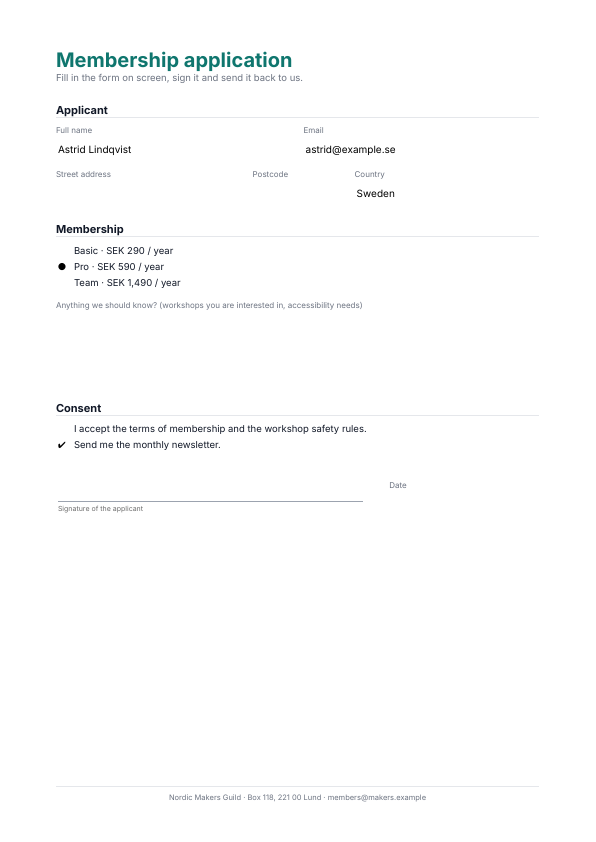
A one-page membership application with every kind of form field: text inputs, a multiline note, a comb field, a select box, a radio group, check boxes and a signature field.
examples/form.rb is a one-page membership application with every field on this page, rendered live by this site.
Signing#
Empty for a viewer to sign, or signed by the document itself.
signature_field writes an empty signature field: a place in the document where a signature goes. The signer fills it in a viewer that can sign, such as Acrobat, with their own certificate. To sign at render time instead, give the document a certificate and key with sign and name the field: sign certificate:, key:, field: "approval". The field keeps its appearance and the file carries a PAdES baseline signature over every byte. See Digital signatures.